


How to Create a Support Ticket on Theme Plugin BD?


At Theme Plugin BD, we strive to provide the best GPL themes, plugins, scripts, and templates at affordable prices. However, if you ever face an issue with your purchase or have any queries, our Support Ticket System is here to help!
In this blog post, we’ll guide you through the step-by-step process of creating a support ticket on Theme Plugin BD to get quick assistance from our team.
Table of Contents
What is a Support Ticket?
A support ticket is a way to directly communicate with our support team. Instead of waiting for an email reply, you can track and manage your issue through our ticket system. Whether it’s about product installation, licensing issues, download problems, or any other concerns, our support team is ready to assist you.
Steps to Create a Support Ticket on Theme Plugin BD
Step 1: Log in to Your Account
To create a support ticket, you must be logged in to your Theme Plugin BD account.
- Go to ThemePluginBD.com
- Click on the “Login / Register“ button
- Enter your email and password and click “Sign In”
If you don’t have an account yet, you can register using the “Sign Up” option.
Step 2: Access the Support Section
Once logged in, navigate to the Support Ticket section.
- Click on “Support” in the menu bar
- Click on “Create a New Ticket”
This will take you to the support request page.

Step 3: Fill in the Ticket Details
Now, you need to provide details about your issue:
- Enter a Subject
Example: “Unable to Download Purchased Plugin” - Describe Your Issue
Clearly explain the problem you are facing. Mention any error messages if applicable. - Attach Screenshots (Optional)
If the issue is technical, attaching a screenshot can help our team understand the problem better. - Select the Support Priority
- Normal
- Medium
- Critical
- Enter Product Name
Mention the theme, plugin, or script related to your issue. - Enter Your Order ID
Provide the order ID for faster resolution.
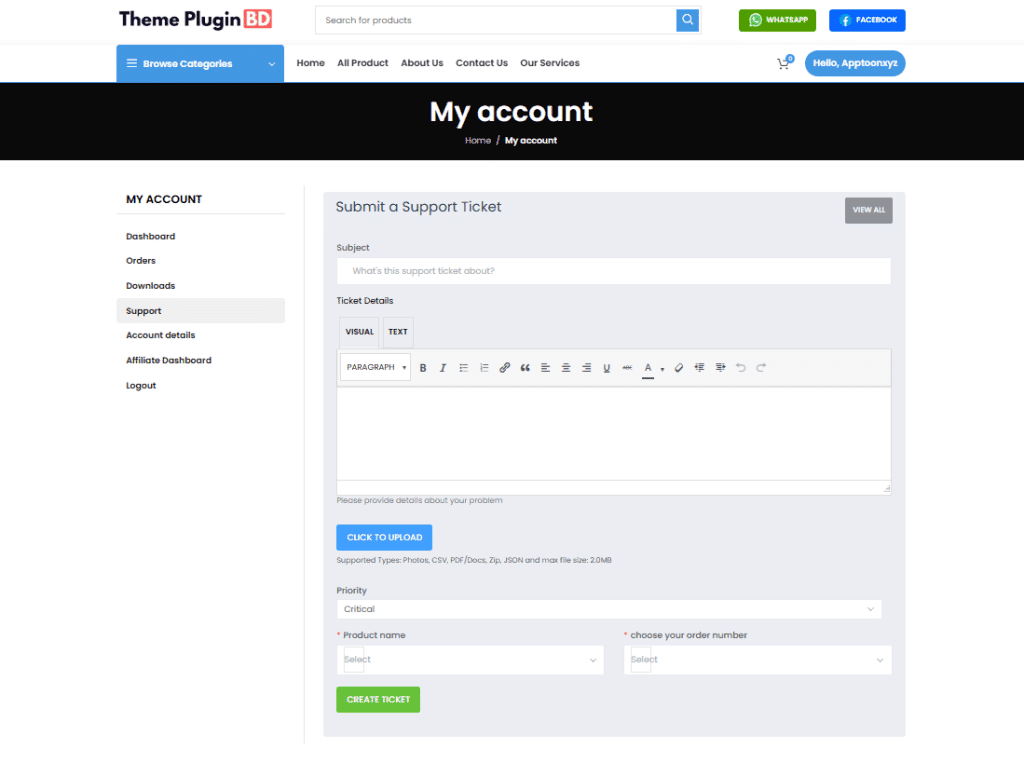
Step 4: Submit the Ticket
Once all the details are filled in, click the “Create Ticket” button, and your support request will be submitted successfully.
- Your ticket will be created, and you will receive a Ticket ID.
- You can track the progress of your ticket from your Support Dashboard.
How to Check Ticket Status and Reply?
Once your ticket is submitted, our team will review it and respond as soon as possible.
To check your ticket status:
- Go to Support → My Tickets
- Click on your ticket to see updates
- If our team has responded, you can reply with additional details if needed
- Once your issue is resolved, the ticket will be marked as Closed
Why Use the Support Ticket System?
✅ Faster response time than email support
✅ Organized communication with our team
✅ Easy tracking of previous issues and solutions
✅ Better resolution with step-by-step assistance
Conclusion
At Theme Plugin BD, we value customer satisfaction. If you ever face an issue, don’t hesitate to create a support ticket. Our team is always here to help you get the best experience with our GPL themes and plugins!
If you need support now, Submit a Ticket and get a quick resolution!
